> ## Documentation Index
> Fetch the complete documentation index at: https://atmos.oxygen.wiki/llms.txt
> Use this file to discover all available pages before exploring further.
# Bookmarks manager
> Add bookmarks to every browser profile or route them by profile tags
## Overview
Open **Browser → Bookmarks manager** to manage bookmarks for Oxidium profiles.
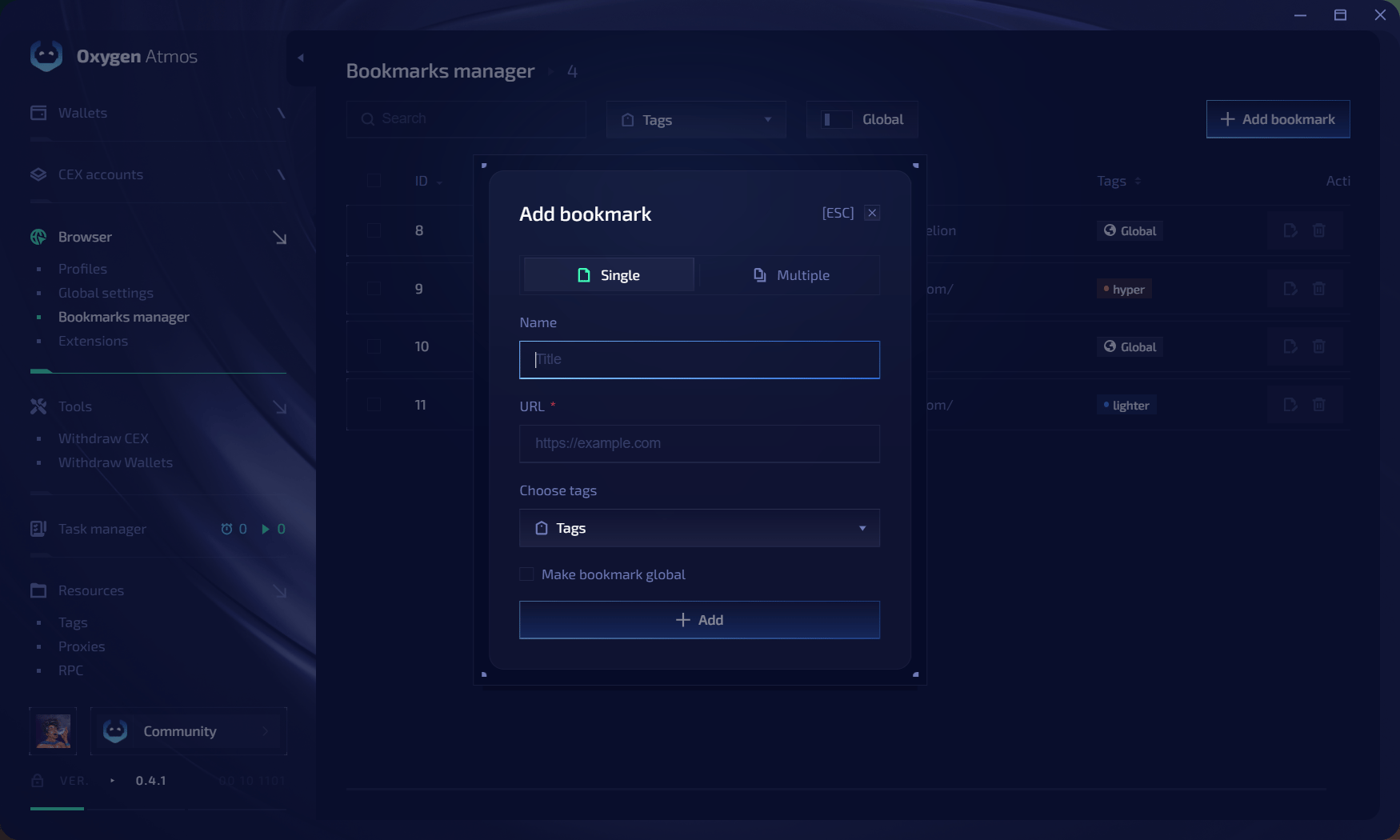 A bookmark can be global or tag-based:
| Assignment | Behavior |
| ------------- | ---------------------------------------------------------------------- |
| **Global** | Add the bookmark to every browser profile |
| **Tag-based** | Add the bookmark only to profiles that share at least one selected tag |
## Add one bookmark
Click **Add bookmark**, then select **Single**.
Enter its name and URL.
Select profile tags or enable **Make bookmark global**.
Click **Add**.
## Add multiple bookmarks
Select **Multiple** and enter one bookmark per line in this format:
```text theme={null}
URL|title
```
For example:
```text theme={null}
https://example.com|Example
https://github.com|GitHub
```
Select profile tags or enable **Make bookmark global**, then click **Add**. The selected assignment applies to every bookmark in the input.
## Find and manage bookmarks
Use **Search**, **Tags**, and **Global** to filter the list. Use the actions on a bookmark row to edit or delete it.
A bookmark can be global or tag-based:
| Assignment | Behavior |
| ------------- | ---------------------------------------------------------------------- |
| **Global** | Add the bookmark to every browser profile |
| **Tag-based** | Add the bookmark only to profiles that share at least one selected tag |
## Add one bookmark
Click **Add bookmark**, then select **Single**.
Enter its name and URL.
Select profile tags or enable **Make bookmark global**.
Click **Add**.
## Add multiple bookmarks
Select **Multiple** and enter one bookmark per line in this format:
```text theme={null}
URL|title
```
For example:
```text theme={null}
https://example.com|Example
https://github.com|GitHub
```
Select profile tags or enable **Make bookmark global**, then click **Add**. The selected assignment applies to every bookmark in the input.
## Find and manage bookmarks
Use **Search**, **Tags**, and **Global** to filter the list. Use the actions on a bookmark row to edit or delete it.