> ## Documentation Index
> Fetch the complete documentation index at: https://atmos.oxygen.wiki/llms.txt
> Use this file to discover all available pages before exploring further.
# Mass creation
> Create multiple browser profiles at once with bulk configuration options
## Overview
Mass creation lets you generate multiple browser profiles in a single operation. Each profile gets its own fingerprint and can receive wallets, proxies, social tokens, tags, and browser preference overrides.
Use bulk creation when you already have wallets in Oxygen Atmos and want to create one profile per wallet. Use file import when you need row-level control from a spreadsheet.
## Bulk create
Click **New Profile** and select the bulk creation option.
Select the input groups you need:
* **Wallets** — create profiles from selected wallets
* **Proxies** — assign proxies (one per line, applied sequentially to profiles)
* **Twitter Tokens** — assign X.com tokens by row order
* **Discord Tokens** — assign Discord tokens by row order
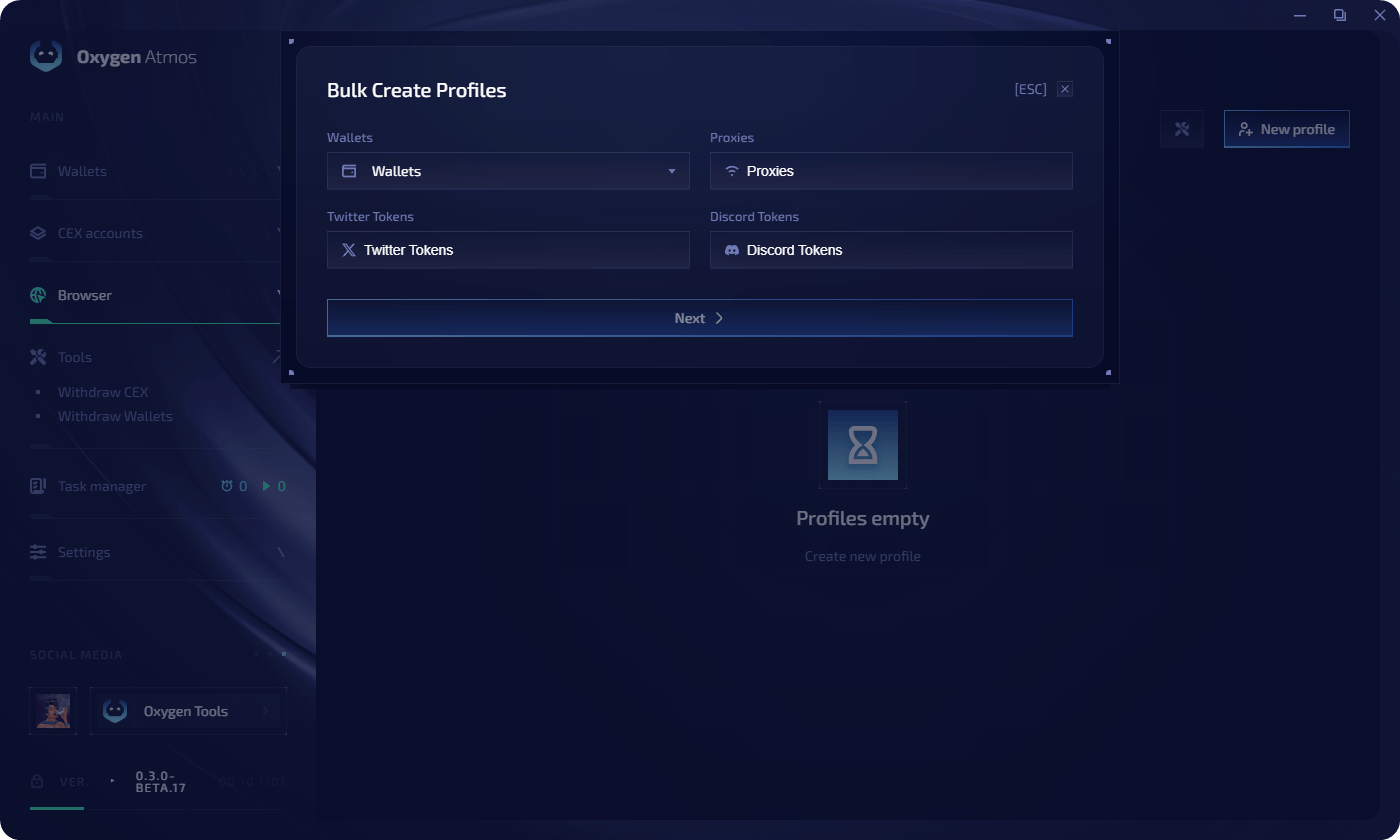 Each selected wallet becomes one profile. Proxy lines and token lines are matched to selected wallets by row order.
Review the generated profiles in the table. Oxygen Atmos checks wallets, proxy input, social tokens, and fingerprint availability before import.
Each selected wallet becomes one profile. Proxy lines and token lines are matched to selected wallets by row order.
Review the generated profiles in the table. Oxygen Atmos checks wallets, proxy input, social tokens, and fingerprint availability before import.
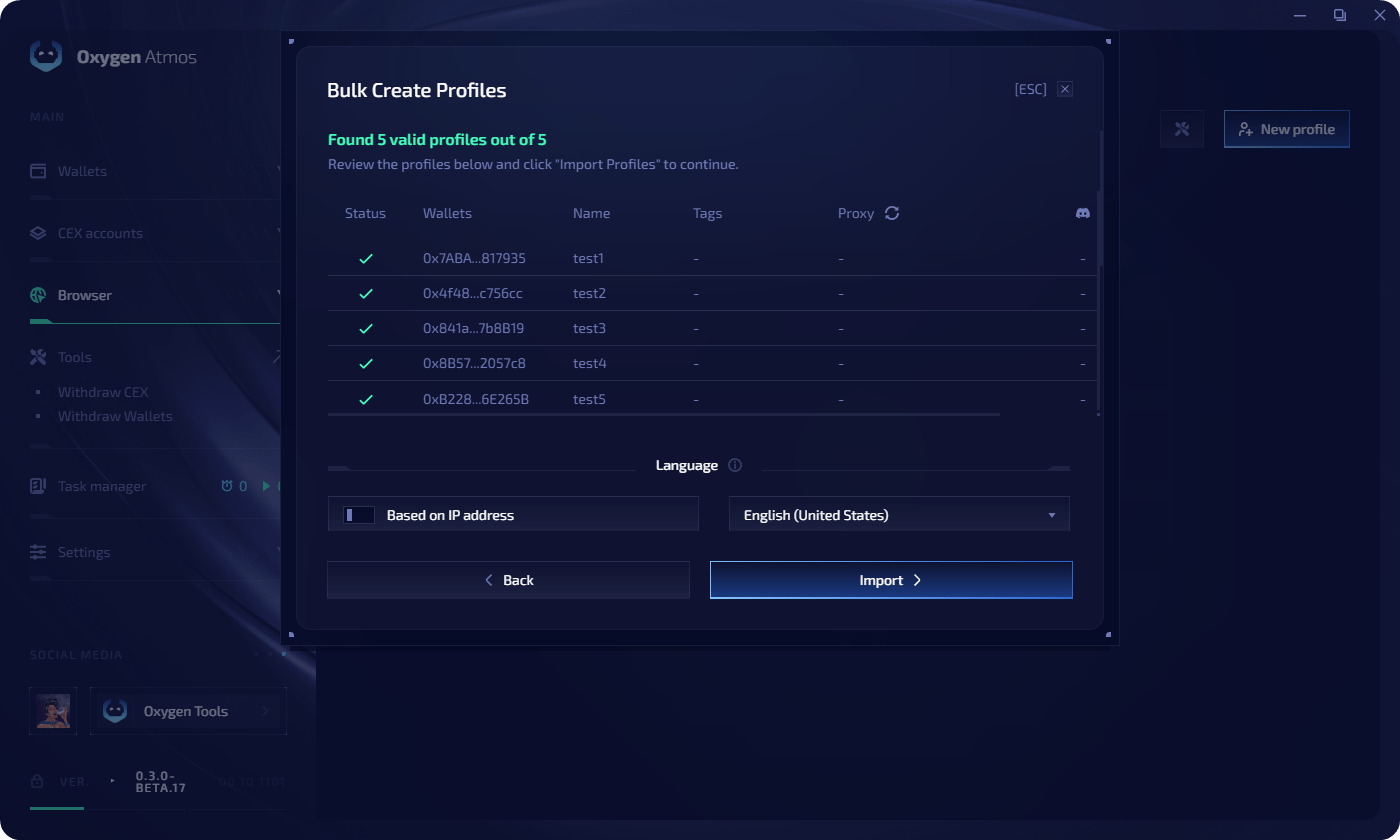 Select the language setting for the generated profiles, then click **Import**.
Profiles with blocking errors must be fixed or skipped before import can continue. If no matching GPU renderer fingerprint is available, retry without GPU renderer matching when the UI offers that option.
## Import from file
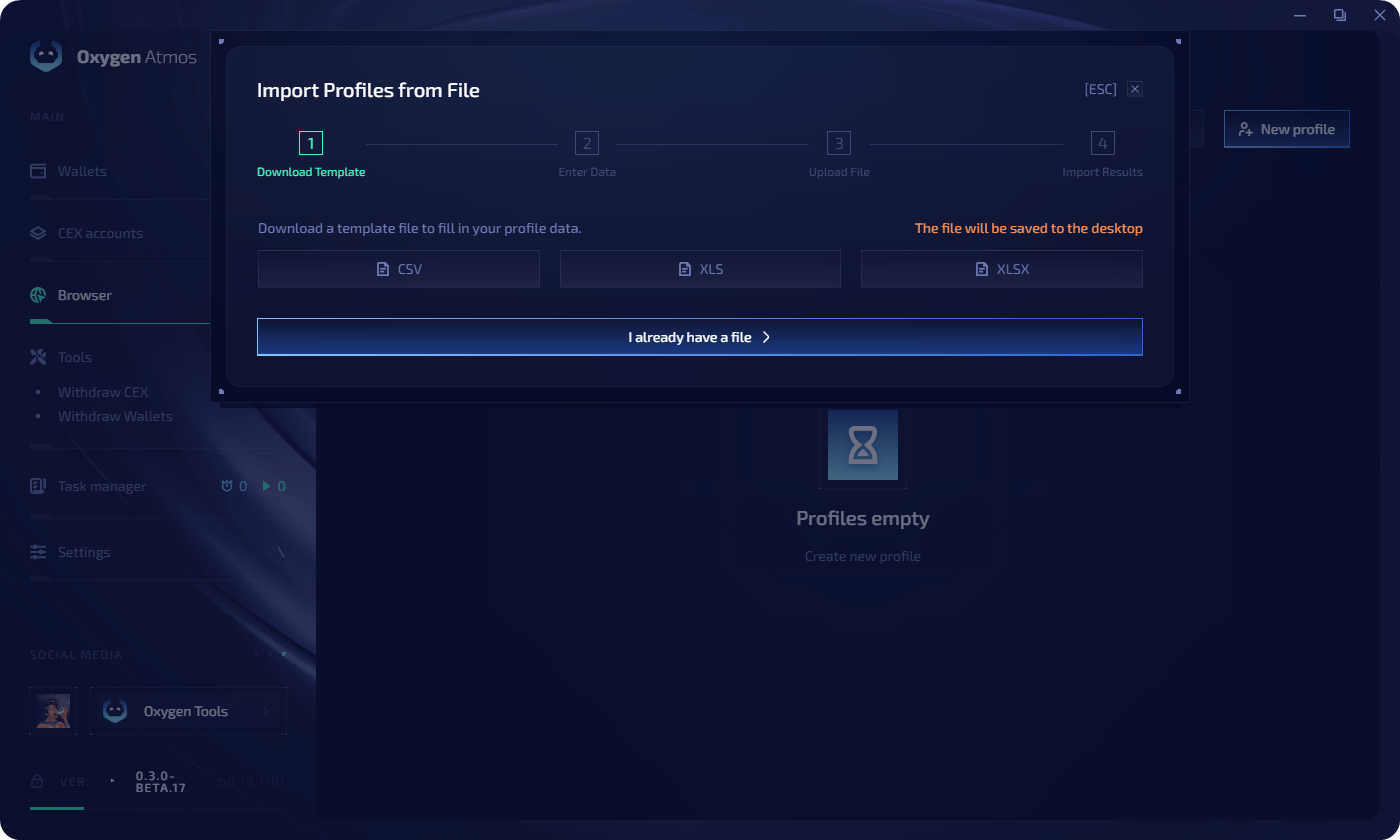
You can also import profiles from a **CSV**, **XLS**, **XLSX**, or **Numbers** file.
In the file import dialog, download the template in your preferred format or choose that you already have a file.
Select the language setting for the generated profiles, then click **Import**.
Profiles with blocking errors must be fixed or skipped before import can continue. If no matching GPU renderer fingerprint is available, retry without GPU renderer matching when the UI offers that option.
## Import from file
You can also import profiles from a **CSV**, **XLS**, **XLSX**, or **Numbers** file.
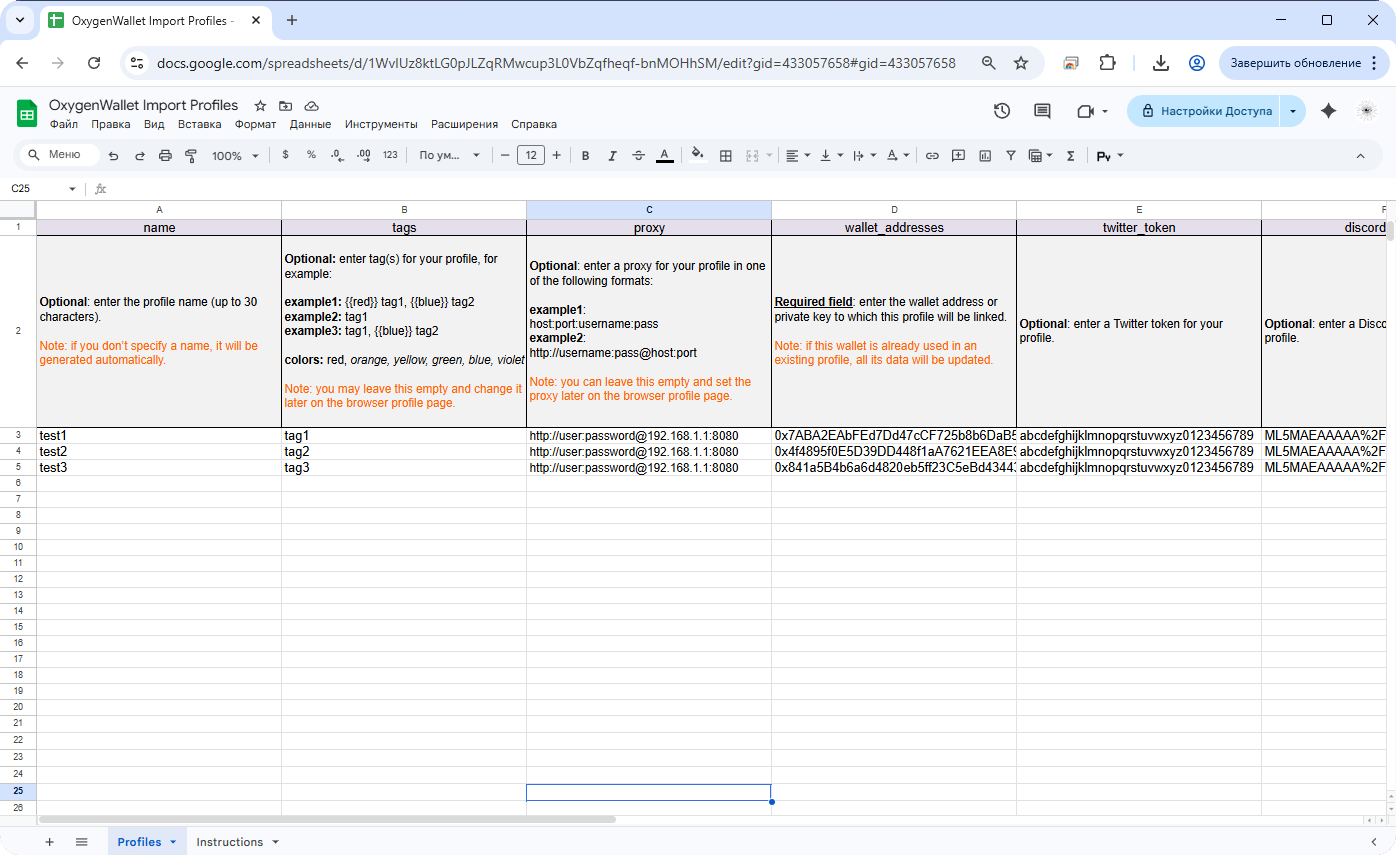
In the file import dialog, download the template in your preferred format or choose that you already have a file.
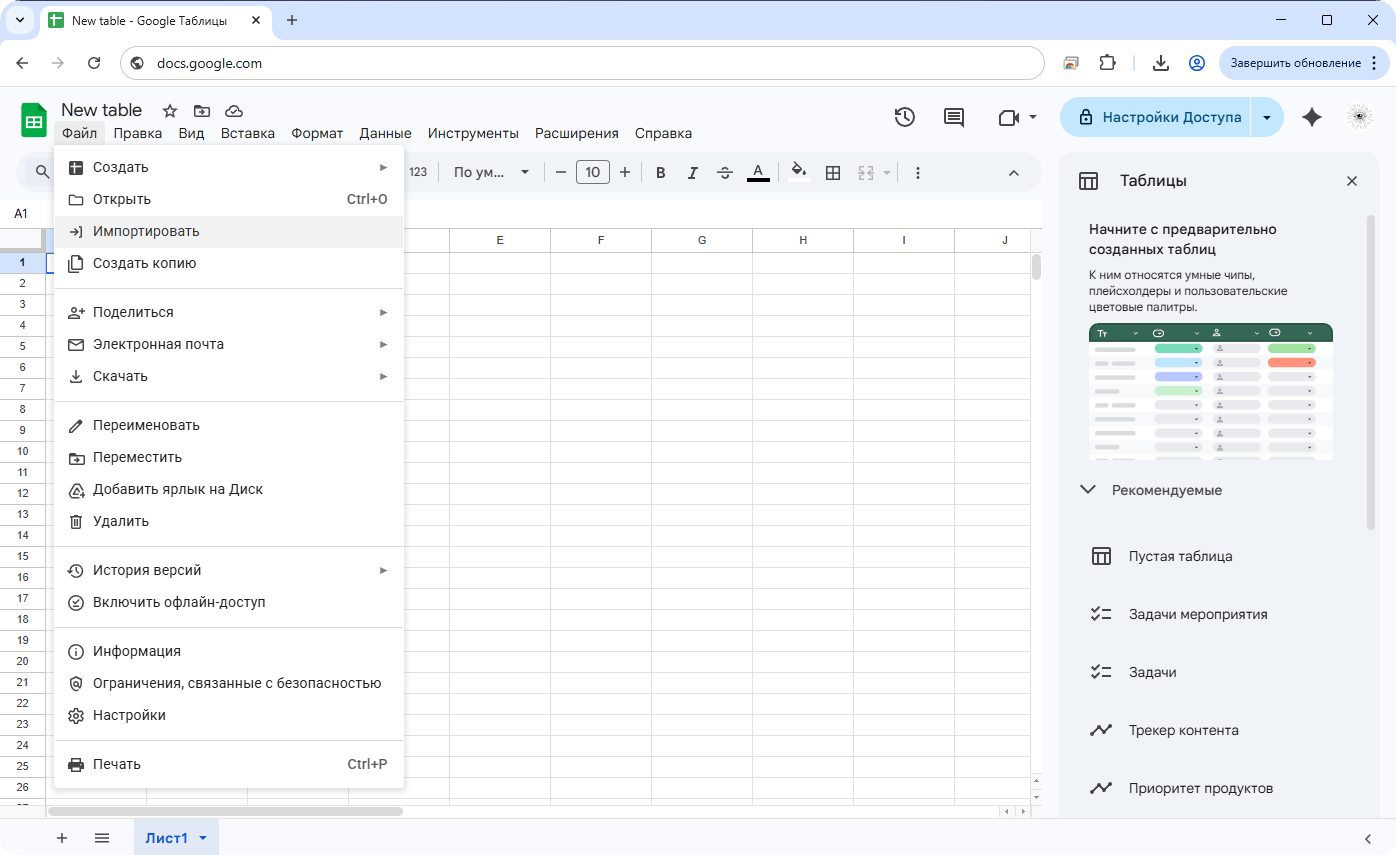
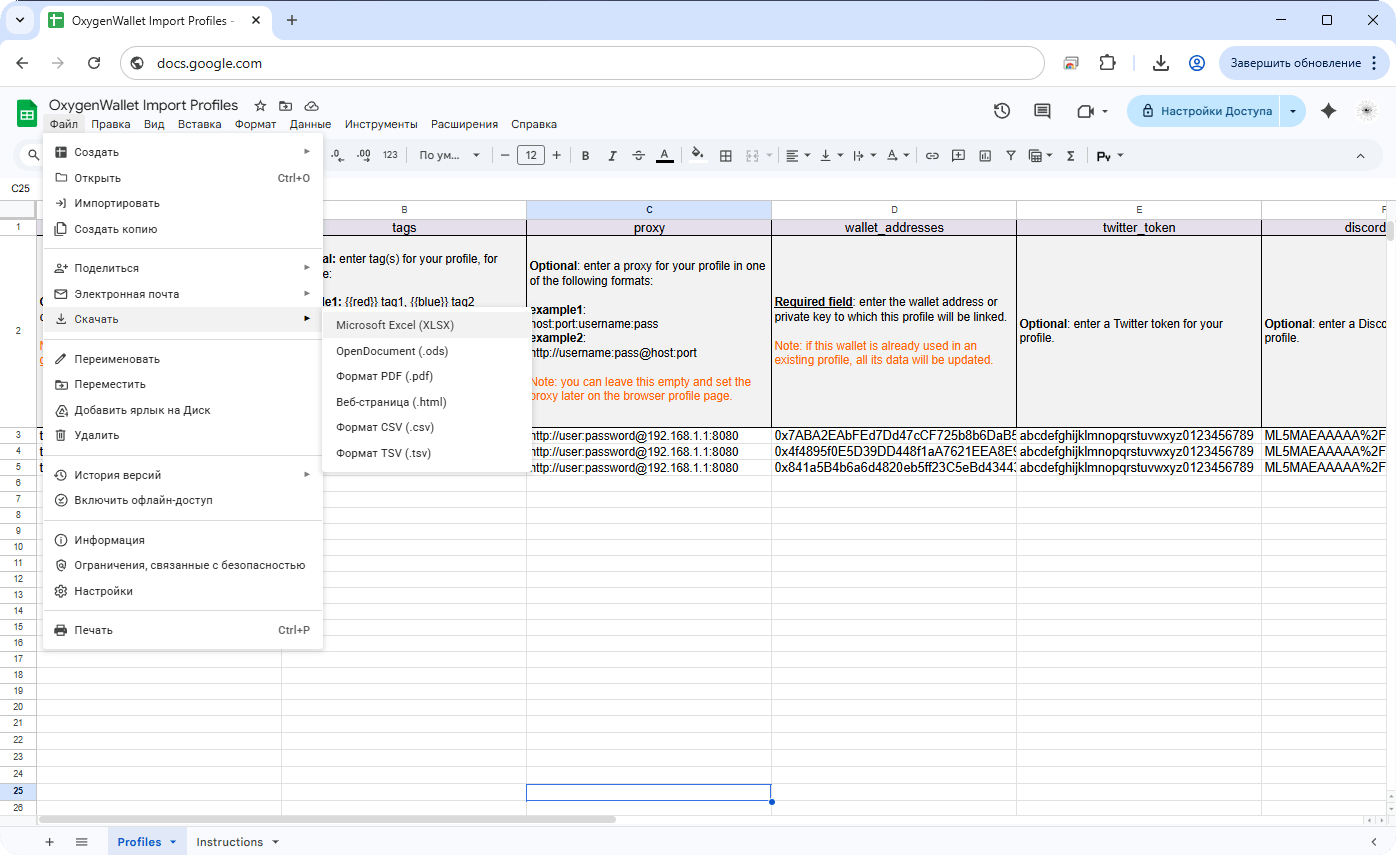 If the file contains private keys, cookies, or social tokens, keep it local and do not upload it to a cloud spreadsheet editor.
The template includes columns for profile name, tags, proxy, wallet addresses, X.com token, and Discord token.
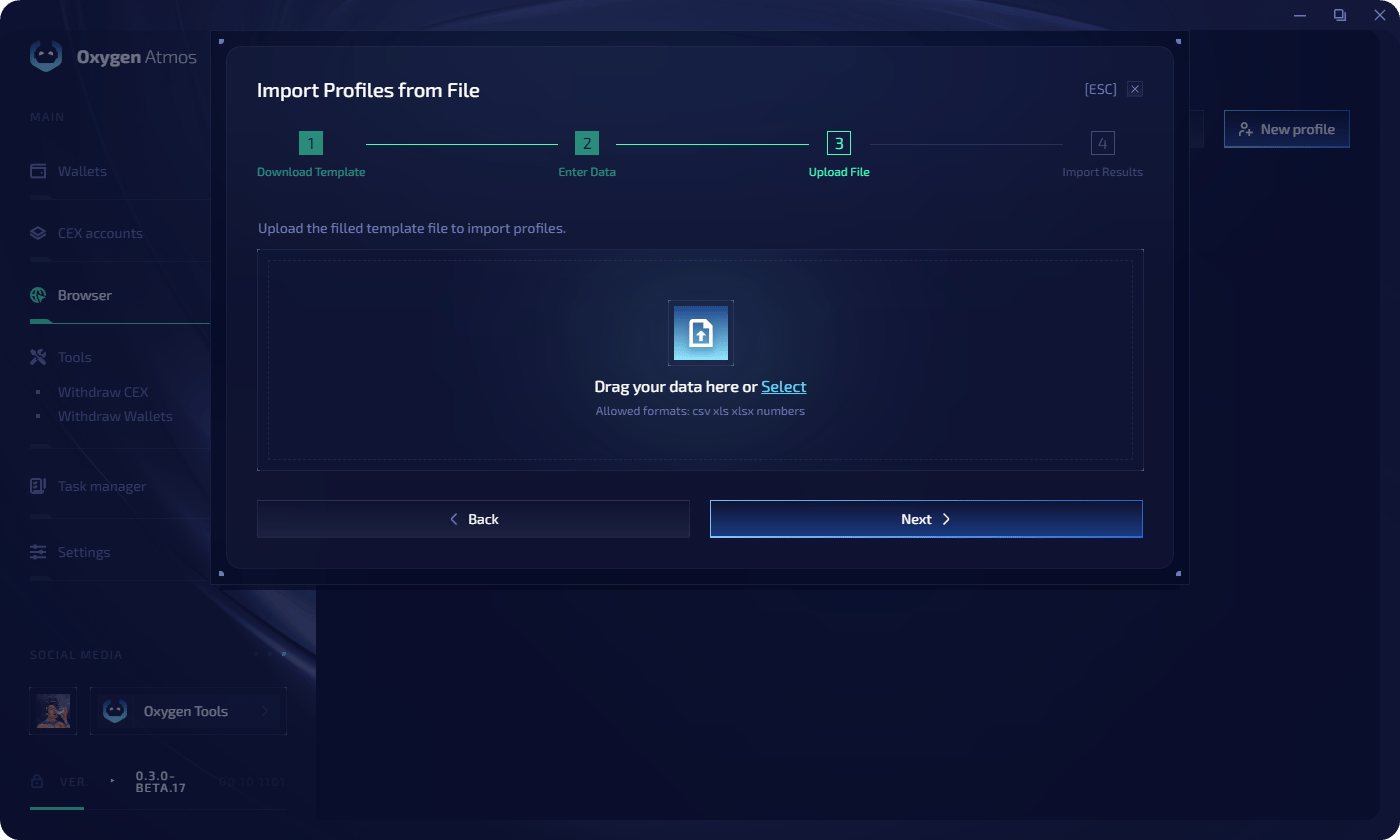
Upload your file by dragging it into the upload area or clicking **Select**.
If the file contains private keys, cookies, or social tokens, keep it local and do not upload it to a cloud spreadsheet editor.
The template includes columns for profile name, tags, proxy, wallet addresses, X.com token, and Discord token.
Upload your file by dragging it into the upload area or clicking **Select**.
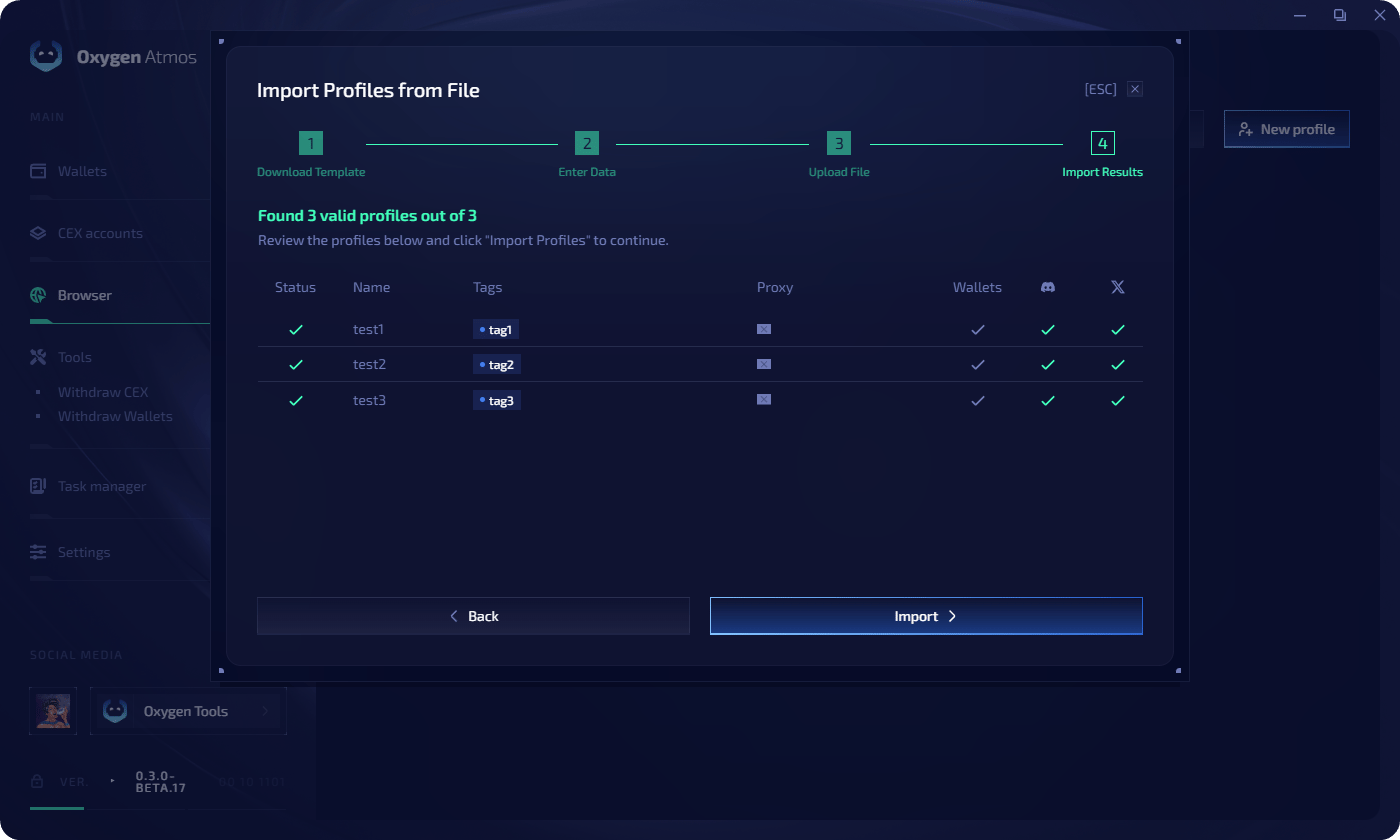
 Review the parsed profiles in the table, then click **Import** to create or update them.
 ## File template
The CSV template uses these columns:
```csv theme={null}
name,tags,proxy,wallet_addresses,twitter_token,discord_token
```
Example rows:
```csv theme={null}
Example Profile,{{red}} tag1,hostname:port:username:password,,,
Example with protocol,tag2,http://username:password@hostname:port,,,
```
Tags are comma-separated. You can specify a color when creating a tag:
```text theme={null}
{{red}} warmup
```
Existing tags are matched case-insensitively. If a tag does not exist, Oxygen Atmos creates it.
Wallet addresses or private keys can be comma-separated. The first wallet is used as the main wallet. Additional wallets are added after the main wallet.
If the main wallet is already linked to an existing profile, import updates that profile instead of creating a duplicate.
The `twitter_token` column imports an X.com `auth_token` cookie. The `discord_token` column imports a Discord local storage token. Both are stored securely and applied during the next browser profile launch.
## Proxy format
When assigning proxies during bulk creation or file import, use one of these formats:
```text theme={null}
protocol://host:port:user:pass
protocol://user:pass@host:port
```
Supported types: **HTTP** and **SOCKS5**. One proxy per line. Proxies are applied sequentially to profiles in the order they appear.
If a proxy has no protocol, Oxygen Atmos auto-detects whether it works as HTTP or SOCKS5 during import. Proxy checks detect whether each proxy works, which protocol it uses, and what location data is available.
## Tips
* Assign [tags](/resources/tags) during creation to group profiles by campaign or purpose
* Use file import for large batches where you need per-profile configuration
* Keep proxy country, language, timezone, and geolocation settings aligned for each profile group
## File template
The CSV template uses these columns:
```csv theme={null}
name,tags,proxy,wallet_addresses,twitter_token,discord_token
```
Example rows:
```csv theme={null}
Example Profile,{{red}} tag1,hostname:port:username:password,,,
Example with protocol,tag2,http://username:password@hostname:port,,,
```
Tags are comma-separated. You can specify a color when creating a tag:
```text theme={null}
{{red}} warmup
```
Existing tags are matched case-insensitively. If a tag does not exist, Oxygen Atmos creates it.
Wallet addresses or private keys can be comma-separated. The first wallet is used as the main wallet. Additional wallets are added after the main wallet.
If the main wallet is already linked to an existing profile, import updates that profile instead of creating a duplicate.
The `twitter_token` column imports an X.com `auth_token` cookie. The `discord_token` column imports a Discord local storage token. Both are stored securely and applied during the next browser profile launch.
## Proxy format
When assigning proxies during bulk creation or file import, use one of these formats:
```text theme={null}
protocol://host:port:user:pass
protocol://user:pass@host:port
```
Supported types: **HTTP** and **SOCKS5**. One proxy per line. Proxies are applied sequentially to profiles in the order they appear.
If a proxy has no protocol, Oxygen Atmos auto-detects whether it works as HTTP or SOCKS5 during import. Proxy checks detect whether each proxy works, which protocol it uses, and what location data is available.
## Tips
* Assign [tags](/resources/tags) during creation to group profiles by campaign or purpose
* Use file import for large batches where you need per-profile configuration
* Keep proxy country, language, timezone, and geolocation settings aligned for each profile group