> ## Documentation Index
> Fetch the complete documentation index at: https://atmos.oxygen.wiki/llms.txt
> Use this file to discover all available pages before exploring further.
# Import wallets
> Add wallets to the manager — one by one, as a list, or from a file
## Import methods
There are three ways to import wallets into the wallet manager:
* **Single** — manual entry for individual wallets
* **Multiple** — paste multiple wallets in a structured format
* **File** — upload CSV, XLS, or XLSX files
Re-importing a wallet with the same private key **updates the existing entry** rather than creating a duplicate.
## Single import
Click **Add Wallet** in the top-right corner.
Choose the **Single** tab.
Select **EVM** as the chain type.
Fill in the fields:
| Field | Description | Required |
| --------------------------- | -------------------------------------------------- | -------- |
| **Private key or mnemonic** | The wallet's private key or mnemonic phrase | Yes |
| **Withdrawal address** | Default destination address for outgoing transfers | No |
| **Name** | Display name for the wallet | No |
| **Tags** | One or more tags for organization | No |
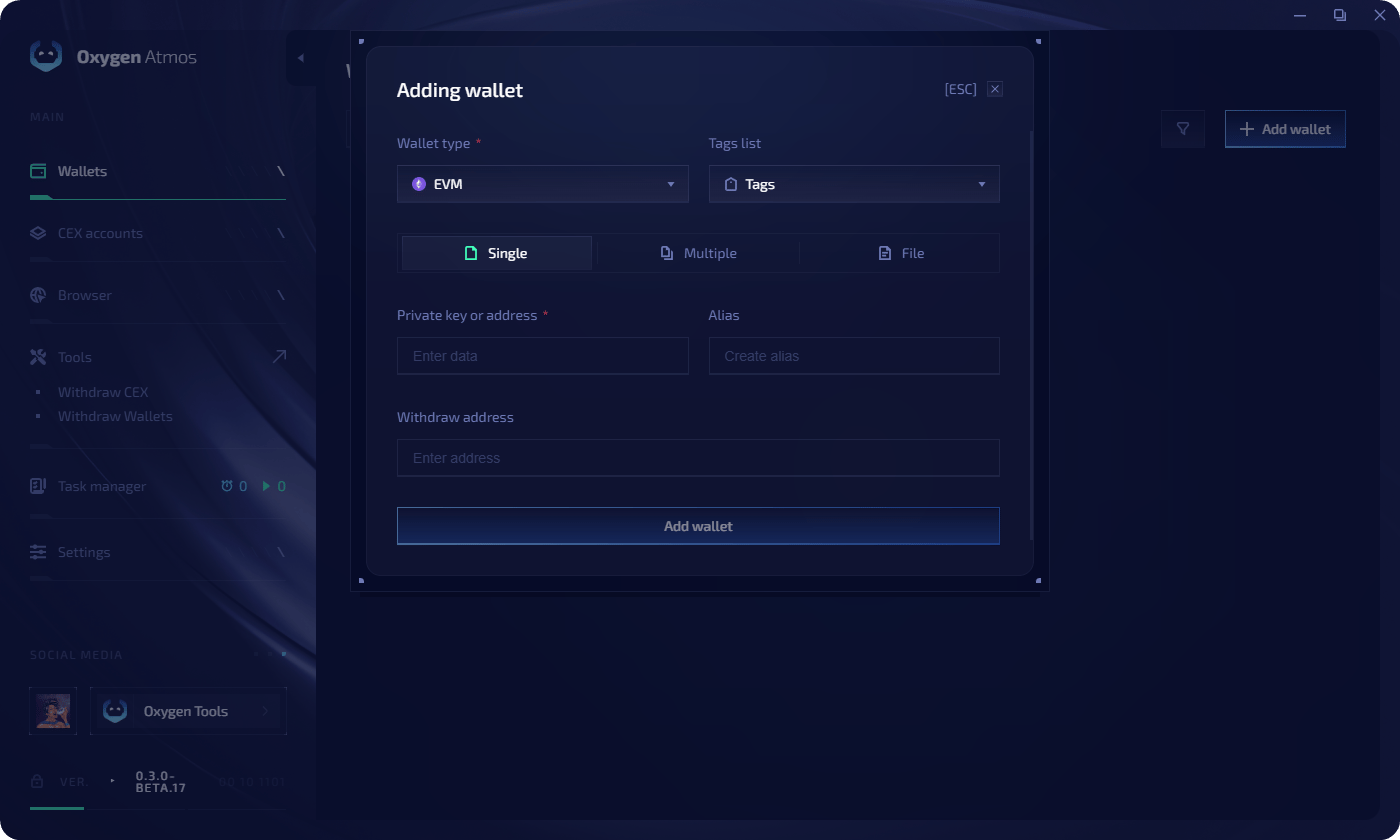 Click **Add Wallet** to import.
## Multiple import
Paste wallets line by line using this format:
```text theme={null}
private_key:withdrawal_address:alias
```
Each wallet goes on a new line. Example:
```text theme={null}
private_key1:0xabc...123:Farm_01
private_key2:0xdef...456:Farm_02
private_key3:0x789...abc:Farm_03
```
Click **Add Wallet** in the top-right corner.
Choose the **Multiple** tab.
Select **EVM** as the chain type.
Select one or more tags to apply to all imported wallets.
Paste your list into the text field.
Click **Add Wallets** to import all entries.
## File import
Supported formats: **CSV**, **XLS**, **XLSX**. You can download a template directly from the import dialog.
Click **Add Wallet** in the top-right corner.
Choose the **File** tab.
Select **EVM** as the chain type.
Select tags to apply to all imported wallets.
Choose a template format (CSV, XLS, or XLSX). The file saves to your Downloads folder.
Click **Add Wallet** to import.
## Multiple import
Paste wallets line by line using this format:
```text theme={null}
private_key:withdrawal_address:alias
```
Each wallet goes on a new line. Example:
```text theme={null}
private_key1:0xabc...123:Farm_01
private_key2:0xdef...456:Farm_02
private_key3:0x789...abc:Farm_03
```
Click **Add Wallet** in the top-right corner.
Choose the **Multiple** tab.
Select **EVM** as the chain type.
Select one or more tags to apply to all imported wallets.
Paste your list into the text field.
Click **Add Wallets** to import all entries.
## File import
Supported formats: **CSV**, **XLS**, **XLSX**. You can download a template directly from the import dialog.
Click **Add Wallet** in the top-right corner.
Choose the **File** tab.
Select **EVM** as the chain type.
Select tags to apply to all imported wallets.
Choose a template format (CSV, XLS, or XLSX). The file saves to your Downloads folder.
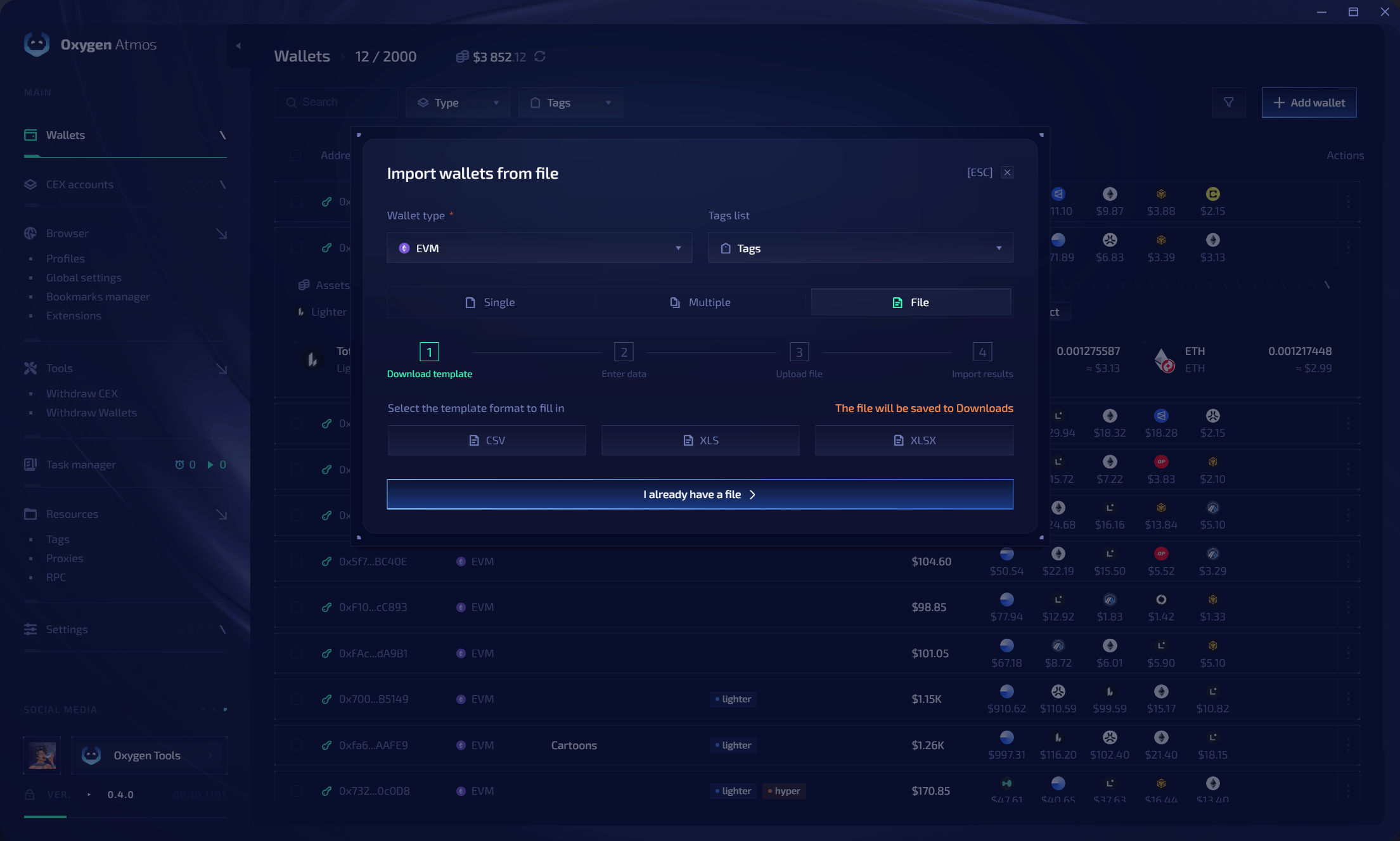 If you don't have Excel, you can import the template into Google Sheets to fill it in.
Open the template and fill in the columns:
| Column | Description |
| ----------------------- | --------------------------------- |
| `wallet_key_or_address` | Private key or mnemonic |
| `withdraw_address` | Destination address for transfers |
| `alias` | Display name for the wallet |
Click **Next**, then drag and drop your file into the import area or click **Select**.
Click **Import** to add all wallets from the file.
If you don't have Excel, you can import the template into Google Sheets to fill it in.
Open the template and fill in the columns:
| Column | Description |
| ----------------------- | --------------------------------- |
| `wallet_key_or_address` | Private key or mnemonic |
| `withdraw_address` | Destination address for transfers |
| `alias` | Display name for the wallet |
Click **Next**, then drag and drop your file into the import area or click **Select**.
Click **Import** to add all wallets from the file.