

Import methods
There are three ways to import wallets into the wallet manager:- Single — manual entry for individual wallets
- Multiple — paste multiple wallets in a structured format
- File — upload CSV, XLS, or XLSX files
Re-importing a wallet with the same private key updates the existing entry rather than creating a duplicate.
Single import
1
Open the import dialog
Click Add Wallet in the top-right corner.
2
Select mode
Choose the Single tab.
3
Select chain type
Select EVM as the chain type.
4
Enter wallet data
Fill in the fields: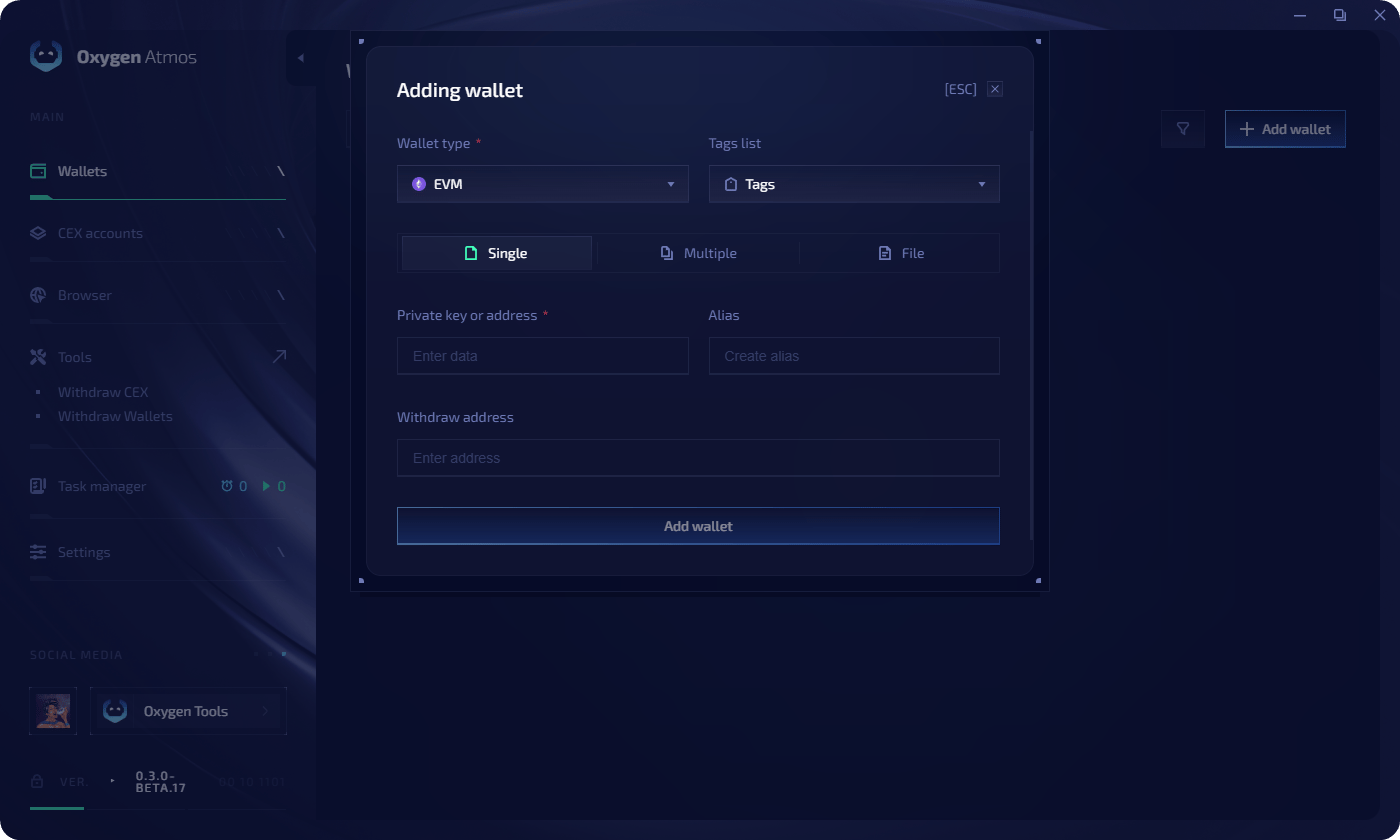
5
Confirm
Click Add Wallet to import.
Multiple import
Paste wallets line by line using this format:1
Open the import dialog
Click Add Wallet in the top-right corner.
2
Select mode
Choose the Multiple tab.
3
Select chain type
Select EVM as the chain type.
4
Assign tags (optional)
Select one or more tags to apply to all imported wallets.
5
Paste wallet data
Paste your list into the text field.
6
Confirm
Click Add Wallets to import all entries.
File import
Supported formats: CSV, XLS, XLSX. You can download a template directly from the import dialog.1
Open the import dialog
Click Add Wallet in the top-right corner.
2
Select mode
Choose the File tab.
3
Select chain type
Select EVM as the chain type.
4
Assign tags (optional)
Select tags to apply to all imported wallets.
5
Download the template
Choose a template format (CSV, XLS, or XLSX). The file saves to your Downloads folder.
If you don’t have Excel, you can import the template into Google Sheets to fill it in.
6
Fill in the template
Open the template and fill in the columns:
7
Upload the file
Click Next, then drag and drop your file into the import area or click Select.
8
Confirm
Click Import to add all wallets from the file.