

View task progress
In the Processing or Archive tab, click Open on a task to view execution details.Task logs
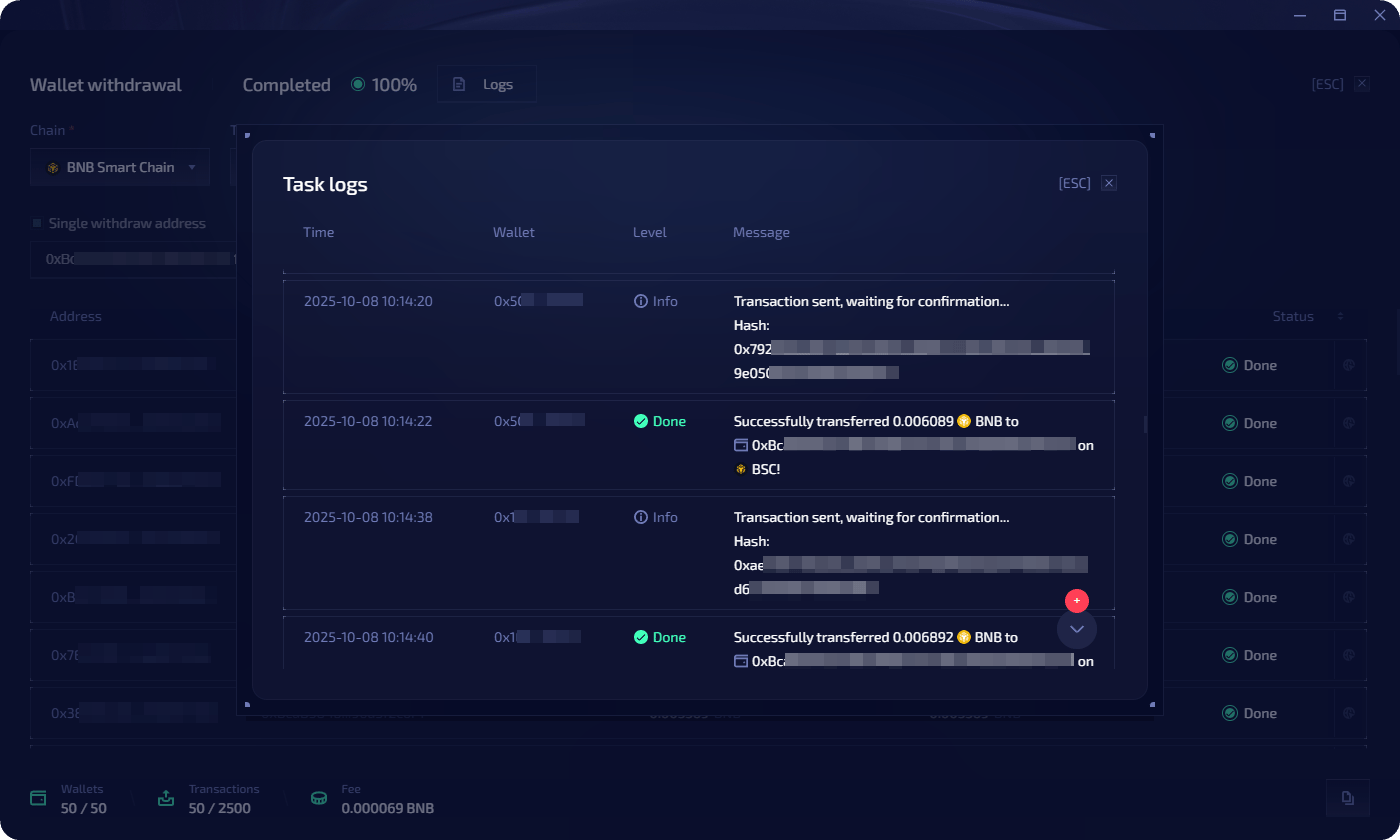
Click Logs to see detailed execution logs with timestamped entries for each wallet operation. Each log entry shows:- Transaction status (success, pending, error) with color-coded indicators
- Status messages (e.g. “Transaction sent, waiting for confirmation”, “Successfully transferred X to address”)
- Expandable details per step
Task statuses
Error recovery
Restart unsuccessful
When a task has the status Partially completed, click Restart unsuccessful to re-run the task only for wallets with Queued or Error status.Copy wallets for targeted fixes
When some wallets fail (e.g. insufficient gas), you can create a targeted top-up task:1
Open the copy menu
In the task view, click the copy icon in the bottom-right corner.
2
Select an option
Choose one of:
3
Configure and launch
Set up parameters for the new task (e.g. send native token to failed wallets), then launch or postpone.