

What is a browser profile
A browser profile is a saved browser identity in Oxygen Atmos. Use profiles to separate accounts, sessions, proxies, wallets, fingerprints, cookies, local storage, extensions, bookmarks, and browser settings. Oxygen Atmos stores and manages the profile configuration. Oxidium is the Chromium-compatible browser core that opens when you launch a profile. Bookmarks can be assigned to every profile or routed to profile groups through tags.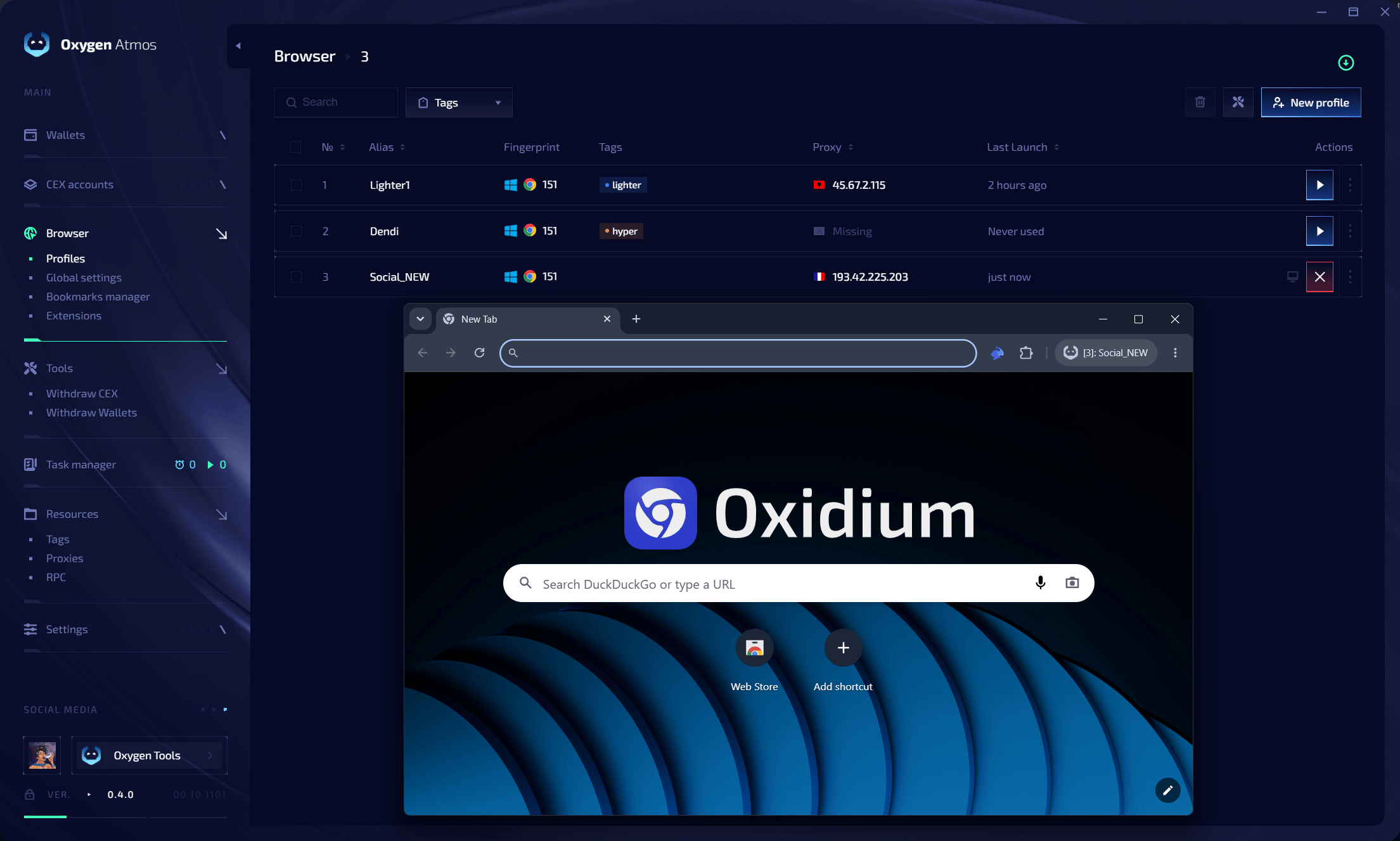
Profile table
The Browser page shows the information you need for day-to-day work:
Use search to find profiles by alias, linked wallet address, browser version, fingerprint label, proxy URL, or proxy IP. Click a tag or use the Tags filter to show a specific profile group.
Profile actions
Common actions include:- launch a closed profile
- focus an already running profile
- close a running profile
- edit profile settings
- edit linked wallets
- edit tags
- edit proxy
- edit secure notes
- move a profile to the trash
Fingerprint components
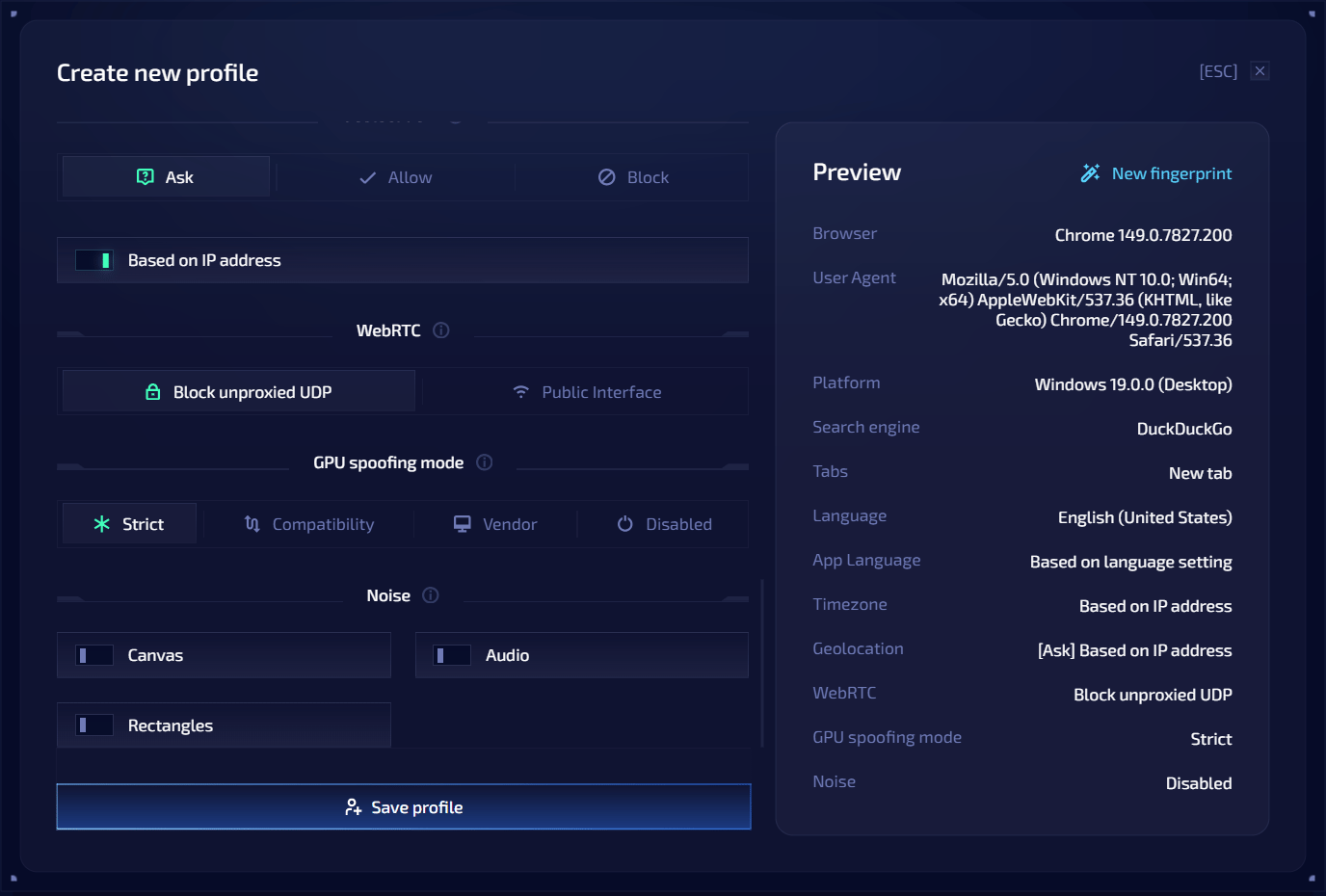
Every profile uses a coherent set of browser parameters:Fingerprints are generated before the profile is saved. The preview reflects the selected browser version and browser preferences.
Profile states
Creating a profile
1
Click New Profile
Click the New Profile button in the top-right corner.
2
Set profile identity
Enter an alias and select or create tags. Tags help filter profiles and can control which extensions load in the profile.
3
Link wallets
Select wallets if the profile should use wallet integration. The built-in Rabby extension provides the browser-side wallet interface.
4
Choose browser version
Select the browser version. Enable Keep up to date when you want Oxygen Atmos to migrate the profile to one of the latest supported versions.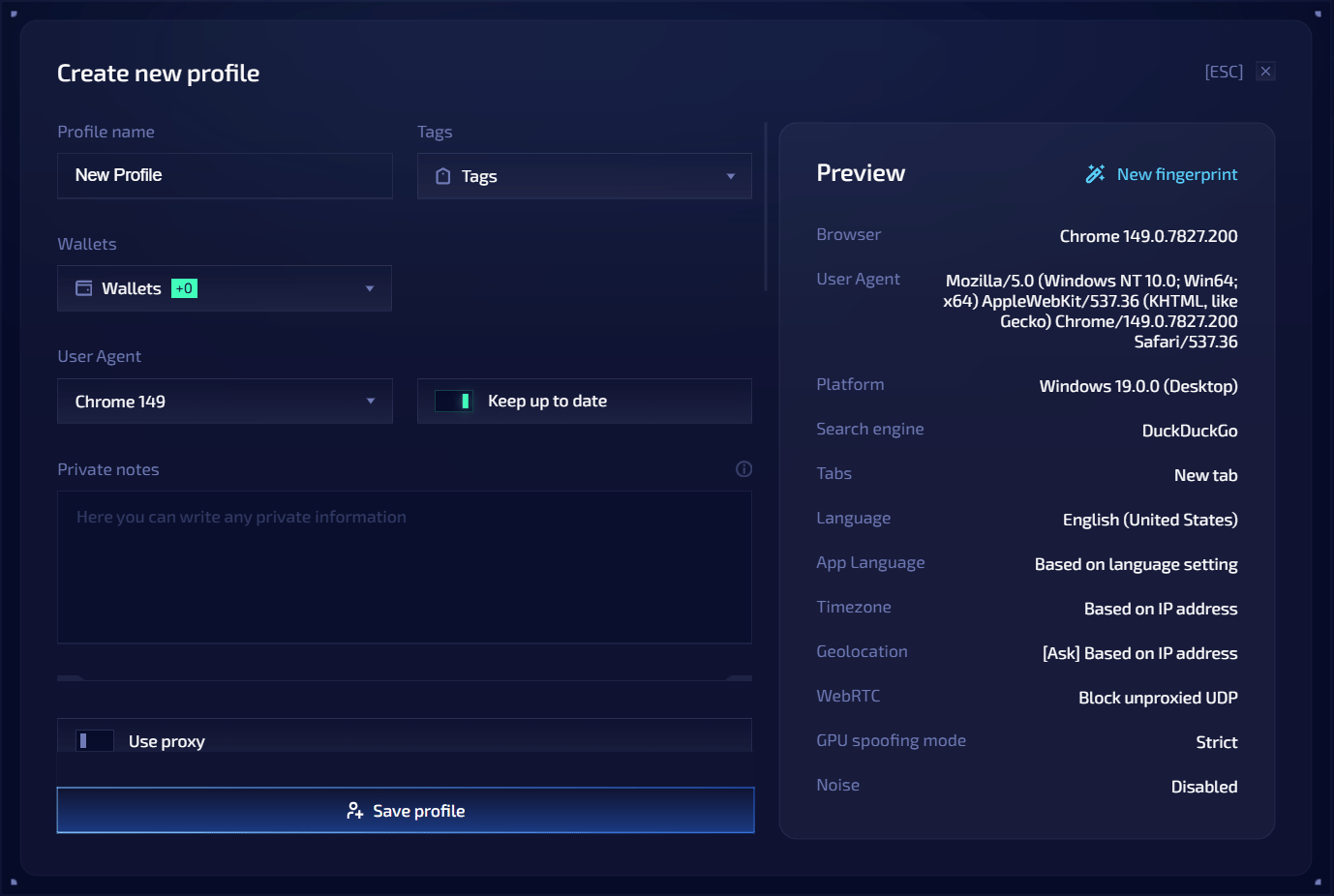
5
Review fingerprint
Review the generated fingerprint preview. It includes values such as user agent, platform, language, app language, timezone, geolocation, WebRTC, WebGL, and noise settings.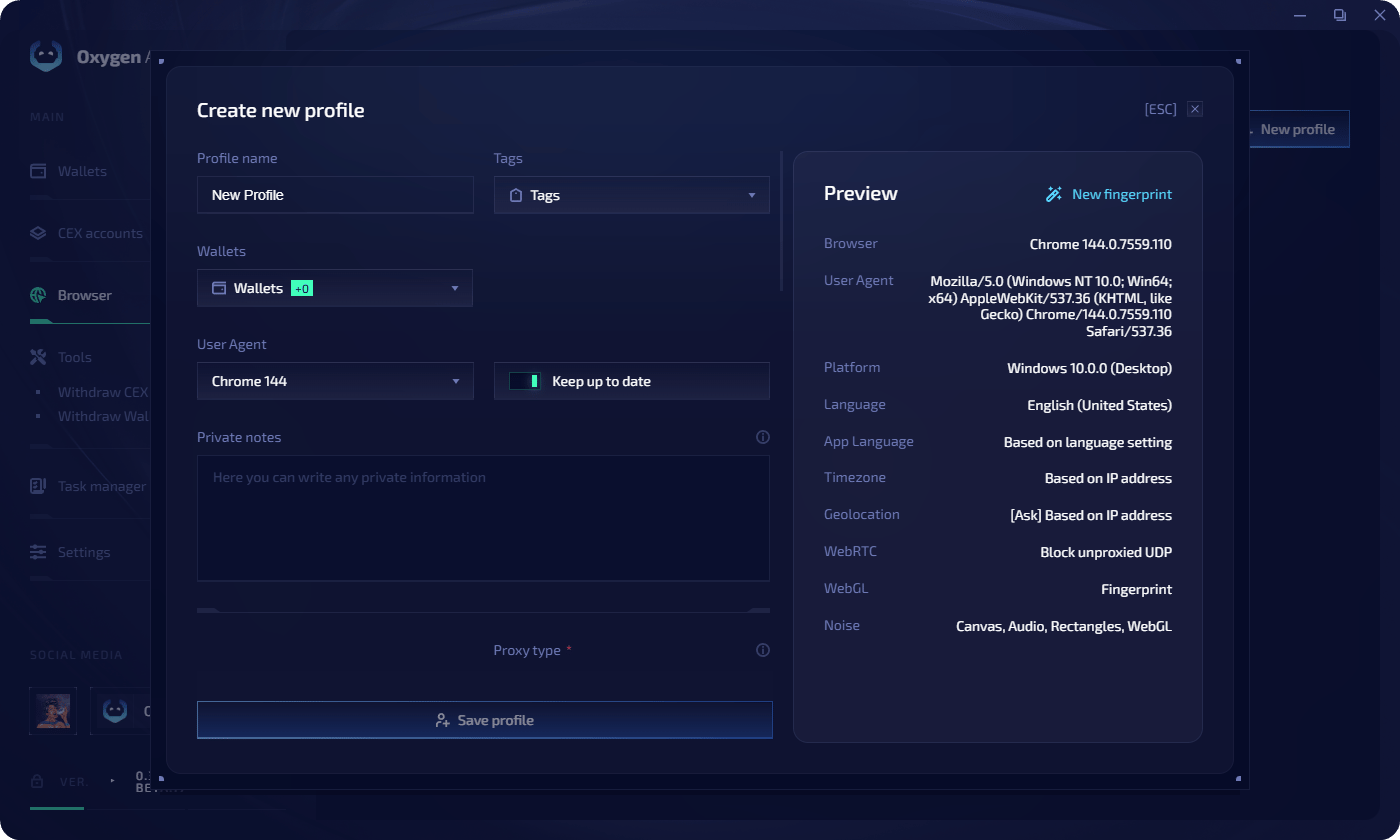
6
Assign a proxy (optional)
Enter proxy details if the profile needs a profile-specific network location. Supported types: HTTP and SOCKS5.Proxy format:When the proxy supports UDP, Oxygen Atmos can proxy WebRTC, QUIC, and HTTP/3 traffic. If UDP cannot be proxied, Oxygen Atmos blocks it instead of allowing a direct connection that could expose your real IP address.
7
Add cookies or social tokens
Add cookies, X.com tokens, or Discord tokens if they should be applied on the next browser launch.
8
Review browser preferences
Use global settings or override startup tabs, search engine, language, timezone, geolocation, WebRTC policy, GPU spoofing mode, or noise settings for this profile.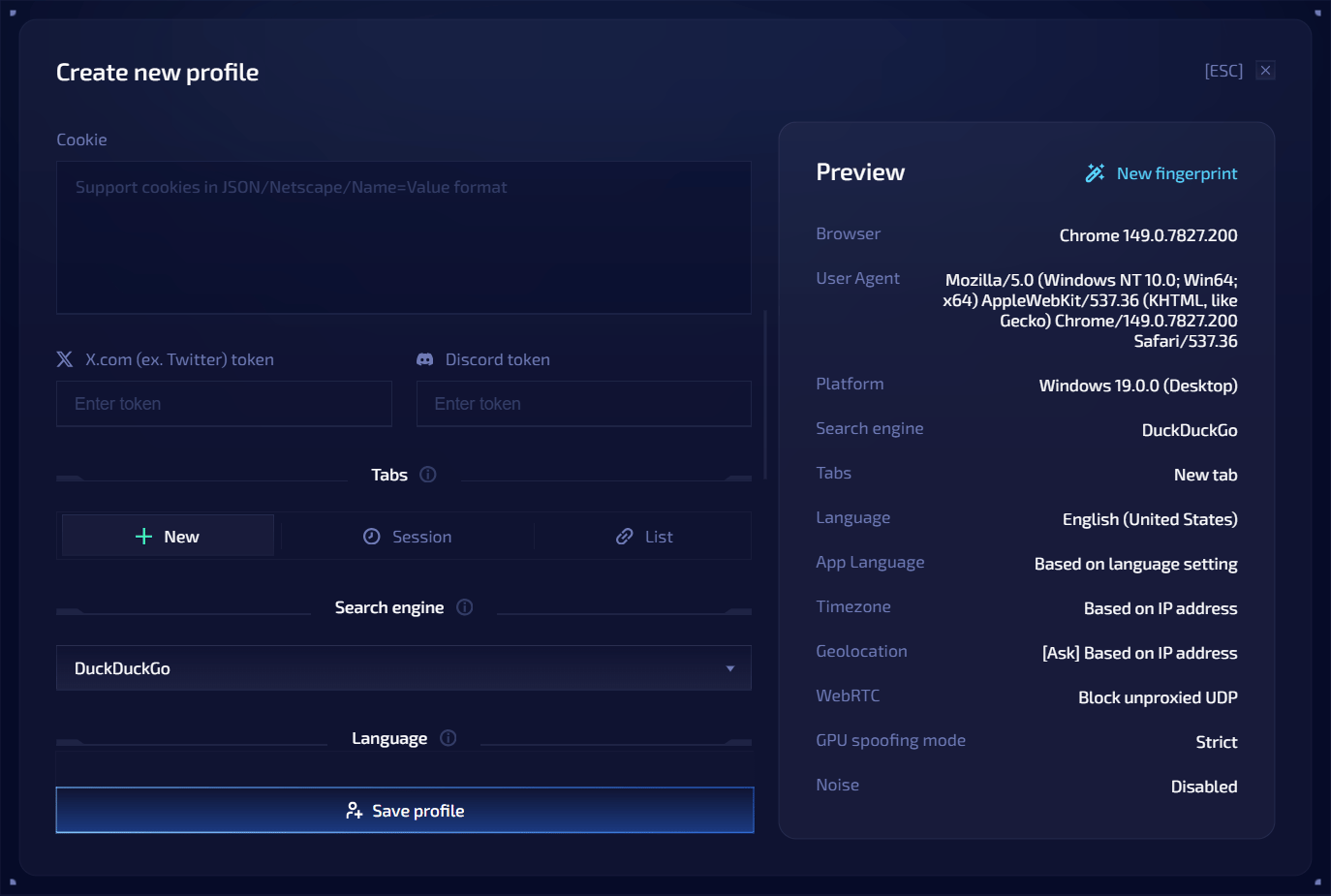
9
Save
Click Save profile. Click the profile row to launch the browser.
Editing a profile
You can edit profile settings after creation. Some changes apply to saved profile data immediately; runtime changes usually require closing and launching the profile again. In edit mode, a browser version cannot be downgraded. You can keep the current version or select a newer supported version.Wallets in profiles
Each profile can have one main wallet per wallet type. The main wallet must exist in Oxygen Atmos, have a private key, and not already be used as the main wallet in another profile. Profiles can also have additional wallets. An additional wallet requires a main wallet of the same wallet type. If the main wallet is removed, secondary wallets of that type are removed from the profile. When the profile launches, linked wallets become available for wallet workflows in the browser profile. Private keys stay inside Oxygen Atmos and are not exposed to the browser runtime.Proxy settings
Each profile has its own proxy. Supported types: HTTP and SOCKS5. To change a profile’s proxy, open the profile editor and update the proxy fields. When a proxy is configured, Oxygen Atmos checks whether it works and stores location data such as country and IP when available. HTTP and SOCKS5 proxies can be used whether or not they provide UDP support. UDP-capable proxies can carry WebRTC, QUIC, and HTTP/3 traffic. With Block unproxied UDP, Oxygen Atmos blocks UDP that cannot be sent through the proxy, while TCP traffic continues to use the configured proxy.Trash and recovery
Deleting a browser profile moves it to the trash instead of removing it immediately. Open the trash to restore a profile or delete it permanently.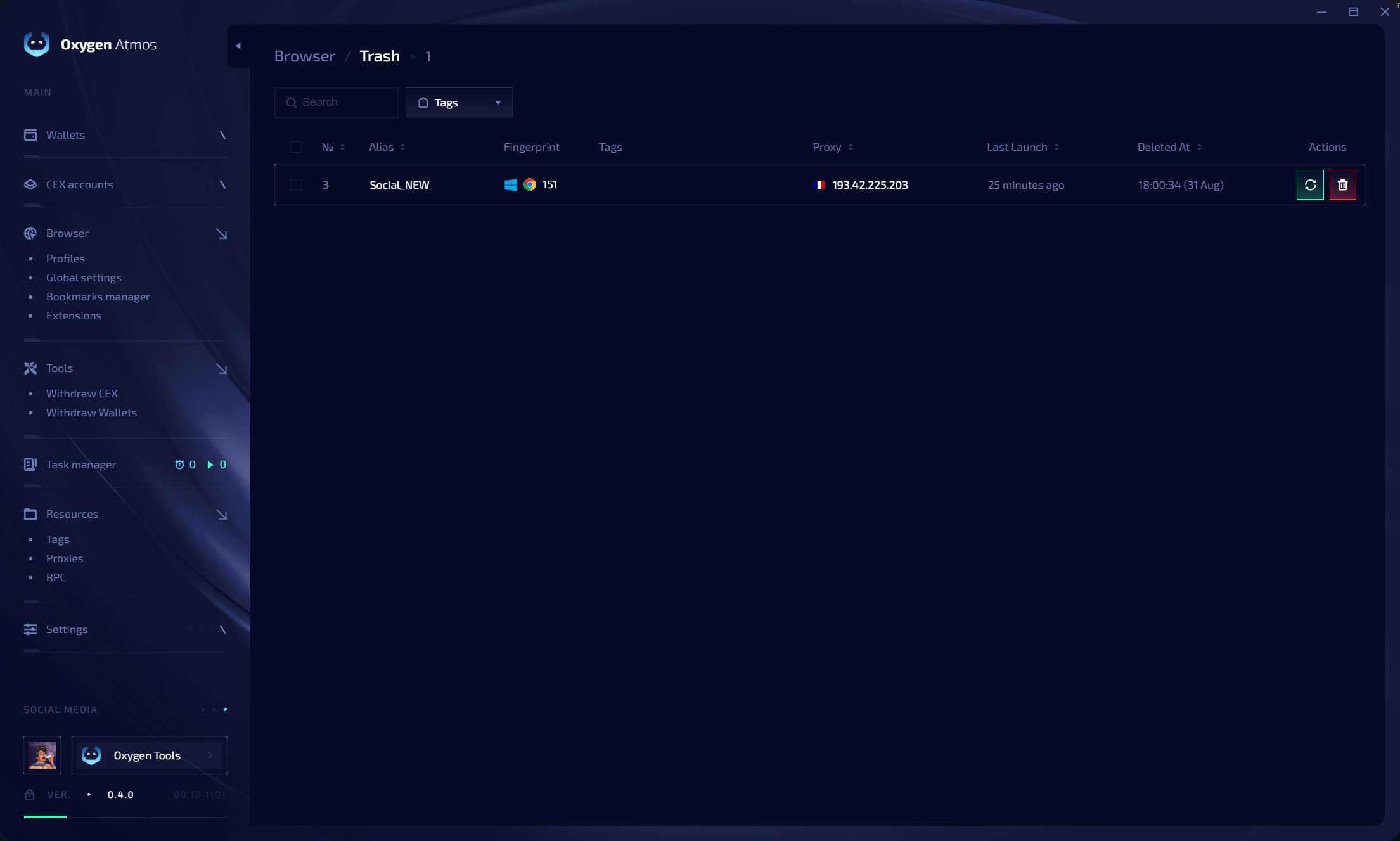
Restore a profile or delete it permanently from Browser > Trash
Membership limit
The number of usable profiles is tied to the limit in the current membership. Profiles above the membership limit are treated as excessive and cannot be used normally until the limit issue is resolved.Next steps
Mass creation
Create multiple profiles at once with bulk settings.
Secure notes
Add encrypted notes to profiles for quick reference.